


Microsoft recently announced the new Knowledge Agent inside SharePoint. Like many of the agentic processes Microsoft is rolling out, this new agent builds on existing product functionality inside SharePoint, while adding a further layer of automation and quality control.
The Knowledge Agent builds on existing SharePoint building blocks.
Autofill Columns
When Microsoft Office SharePoint Server 2007 launched, there was a debate among SharePoint practitioners about whether to store files in folders or to tag them with metadata. Tagging allowed files to have multiple designations at once, so a document could show up in different views — like both “Project Summaries” as well as “Project 123” — unlike folders, which limited a file to one category (where the document either lives in the “Project Summaries” folder or the “Project 123” folder.) The tagging approach provided more flexibility, but with one problem: people rarely took the time to tag their files properly!
This was compounded when OneDrive was released and users began to synchronize files from their devices to SharePoint. Since devices didn’t accommodate tagging, all metadata information was lost when it synched. Many consultants gave up nearly completely until the advent of SharePoint Syntex and then Autofill columns, which are now part of the Knowledge Agent.
To use an Autofill column, simply create a new column in your SharePoint library, and while configuring it within the properties pane, turn on the autofill feature and describe what information you want stored in that column. Each time a new file is added to your library, SharePoint will extract the desired information from the file and place it into the column, using optical character recognition (OCR) if needed.
For example, the following prompt extracts the date a contract was signed.
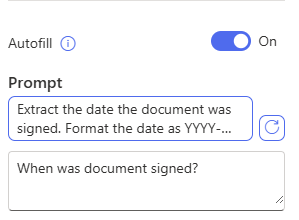
Once the value has been added to your column, this opens up several new possibilities.
Views
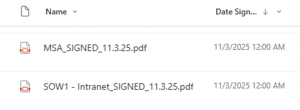
You now can create more meaningful views for users, where you can group, sort, or filter by your new column value. This also allows users to easily identify pertinent information from the file without having to open the document up to view it.
Using the example of a contract library, once the date the contract has been signed has been extracted and placed in a column, you can now create a view that shows the most recently signed contracts.
Rules, Quick Steps and Power Automate Flows
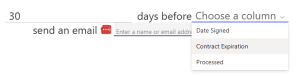
You can now make rules or quick steps based on the information stored in your column, or even build a full-fledged Power Automate flow.
For example, if you created another autofill column that specified the contract expiration date, you could now create a rule to get a notification 30 days before the contract expires, reminding you to take action to get the contract renewed.
Copilot Queries
Copilot previously “reasoned” on the information stored inside files, but this didn’t always provide the most meaningful results. Copilot now uses column values for more accurate document analysis and query results.
Library Management with Knowledge Agent
The Knowledge Agent now shows up as a little button (know as a floating access button, or FAB) that overs over your library.

Clicking on this button provides you a context menu with several options.
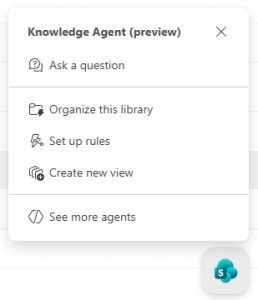
Ask a Question
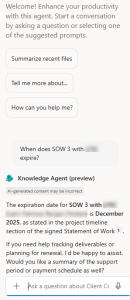
The first option allows you to ask the agent a question, grounded in the information within the library. For instance, you can ask for the expiration date of a particular contract, without having to browse to the correct folder to find that information.
Create New View
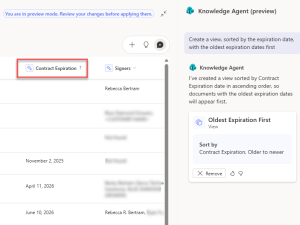
You can also create a new view, by describing the view you would like to create. In this example, we will create a view sorted by contract expiration date, with the oldest expiration dates first. Based on the information within the document library, it created a few with the Contract Expiration column sorted in ascending order. The Knowledge Agent will allow you to preview the view before choosing to create it.
Organize This Library
Selecting “Organize this library” offers the most choices and the agent will propose to you which autofill columns it thinks you could need, based on the documents it’s examining.
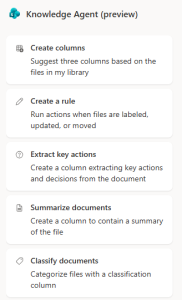
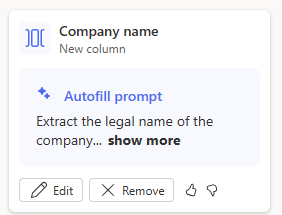
As with the Rules and Views setups, you can use natural language to ask the agent to create an Autofill column for you. However, if you don’t know which column(s) to create, you can ask the agent to suggest some. In the case of our example Contracts library, the agent suggested adding a column to track the name of the company who the contract is with.
You can then choose to edit the column prompt or remove the column altogether.
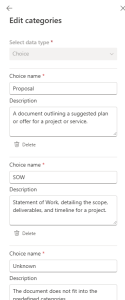
If you choose to classify your documents, the agent will create a new column for tracking the document type. You can see which classifications it wants to add, and you can choose to add or remove your own.
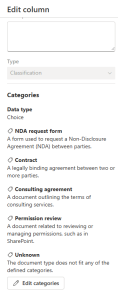
For each classification type, you can use natural language to describe what kind of document would be included in that classification type.
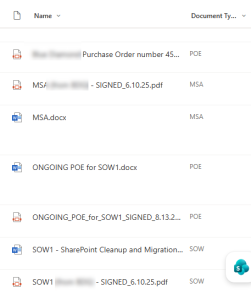
Once the classification column was created, the agent accurately identified the documents according to their types.
If you are curious about how the Knowledge Agent can transform your daily work or want hands-on guidance just get in touch, and let Savvy Technical Solutions explore the possibilities with you!
Additional Resources: