

While the core of what SharePoint document libraries can do has not changed significantly through the years, the look and feel of libraries has changed significantly.


Let’s walk through some of the most recent changes in the user interface for Document Libraries, designed to help you better navigate the information stored within them.
Create and Upload Button Change
The “New” button has moved from the toolbar at the top left of a library to the far right and is now called “Create or upload.”

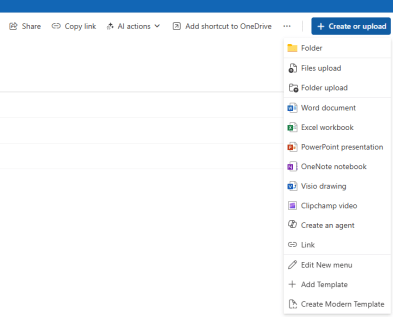
This button now includes options for creating a folder or uploading a file or a folder as well as creating new Office documents, agents, templates, etc.
Breadcrumb and Toolbar Changes
The toolbar has now been moved so it sits flush with the library breadcrumb instead of being positioned above it.


This provides a more compact view, which preserves real estate for the actual documents in the library.
When viewing the folder breadcrumb in a library, users can now create folders or upload files immediately from the title of the folder or library or easily navigate to other libraries if they are viewing the root folder of the library.

View Changes
The ability to select or change a view used to be at the top right of the library, along with a button to filter items in the library.

Unfortunately, because the various views were hidden until a user clicked on the view selector, many users weren’t even aware that those views existed. Now, individual views are easily accessible for users to see and select as they are positioned directly below the name of the library.

The actions available to manage various view options, such as grouping items or selecting display options (like tile view, grid view, etc.), are now available from a “Properties” menu, available on the right side of the toolbar, under the “Create and Upload” button.

Finally, users can easily filter document types by clicking on a document type icon. If they click on the filter button, it will open the same filter tool pane that was previously available from the toolbar Filter button.

Conclusion
Because of the longevity of SharePoint, Microsoft very infrequently makes changes to the way that SharePoint libraries behave, because of the disruption it can cause to millions of users. However, we are happy to see these changes coming, as they provide increased usability and better use of screen space. These changes started rolling out to tenants in January so look for these to hit your tenant sometime in 2026.